A simple guide how to set up a basic Postfix mail server with IMAP and POP3 services. It does not included advanced topics such as integrating virus-checking and spam-filtering.
Setup Overview
In our setup, Postfix sends and receives mail from Internet and stores them in the user mailboxes while clients in the Internet can retrieve their mails via Courier IMAP or POP3. The user authentication is done by Courier Authdaemon. The following diagram shows this process.
Install Postfix
In this setup I assume that your domain is yourdomain.com and it has a valid MX record call mail.yourdomain.com. Remember to replace yourdomain.com with your actual domain in the example codes in this howto. Also I assume that you know what an MX record is. To find out MX your type in a terminal:
dig mx yourdomain.com
To install postfix
sudo apt-get install postfix
Intall mailx package for use as command mail utility program. Mail command is installed with this package.
Thanks for visiting! If you're new here, you may want to subscribe to my Rss Feed. This blog posts regular Internet news, updates for apps, security, ideas, hacks, quick fixes and everything about hi-tech. Go ahead, subscribe to our feed!
There are some days that Fedora 8 was released, below you have a rapid upgrade without downloading fedora dvd and after burning etc etc. We recommend to make a backup before you start and make sure that you have all the updates for fedora 7.
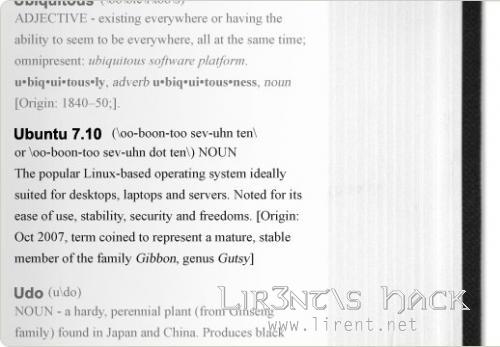
LONDON, October 15, 2007 - Canonical Ltd. announced today the upcoming availability of version 7.10 of the Ubuntu Server, Desktop, Kubuntu and Edubuntu Editions. All will be available for free download on Thursday 18 October. Canonical is the commercial sponsor of Ubuntu.
Ubuntu makes no distinction between community and enterprise editions, Ubuntu 7.10 is our best work and is available freely to all. Ubuntu has consistently ranked #1 in reviews of security update responsiveness and effectiveness. The Ubuntu platform is fully certified and supported, making it a secure choice for users looking to explore, deploy and enjoy Linux. Ubuntu 7.10 brings together the best open source and free software available in a stable, robust environment that ‘just works’.
Ubuntu is available free of charge and we can send you CDs of the latest version (7.10 (Gutsy Gibbon)) with no extra cost, but the delivery may take up to ten weeks, so you should consider downloading the CD images if you have a fast Internet connection.
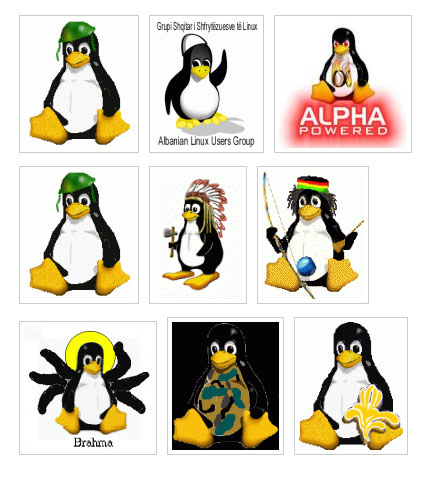
Do you like TUX? The Linux Penguin? I like it a lot because for me it is the symbol of the revolution of the computers. I uploaded lot of pictures for the fans of the Linux Penguin.
1. FamFamFam - most popular free silk icon sets in the internet.
2. Tango Icon Library - hundreds of desktop icon sets.
3. 2pt3 - five sets of square bullet icons.
4. Drunkey Love Iconset - consists of over 100 16×16 icons in PNG format.
5. Strawbee - tiny little cute icons.
6. Sanscons - a small spinoff icon set that allows for CSS-based coloring and framing.
7. Bitcons - a mini-pixel icon set containing 121 individual icons for various subjects.
8. Sweetie - cute and clear icons to use for web application.
9. Feed Icons - official feed icons. Read the rest of this entry »
Ubuntu 7.10 is the current DEVELOPMENT version of the Ubuntu operating system. It will be released October, 2007. The common name given to this release from the time of its early development was “Gutsy Gibbon”.
Before you start
You can only directly upgrade to Ubuntu 7.10 (”Gutsy Gibbon”) from Ubuntu 7.04 (”Feisty Fawn”)
Be sure that you have all updates applied to Ubuntu 7.04 before you upgrade
Note: If you have a version of Ubuntu which was released before Ubuntu 7.04, please see Installation/UpgradeFromOldVersion for information on how to upgrade.
Ubuntu Beta upgrade
Note: these instructions apply to the Beta release and will be removed when 7.10 is released
If you wish to participate in testing the Ubuntu 7.10 beta, you can easily upgrade over the network with the following procedure. People upgrading after the final release will not need to use the command line.
Press Alt+F2 to run a command, or open a terminal window
Run the following command:
update-manager -d
Follow the on-screen instructions
If you have a working network connection, it should then inform you of the new release and offer to upgrade your system. Read the rest of this entry »
Glad to see you here and Thank You for your visit. My name is Lirent, born in February 1983 in a small city in Europe. This is my blog about Hacks, Tips and Free Resourse for the WordWideWeb. My instant messaging contact